Zagalaga
  • KeepTrack
  • KeepTrack Pro
  • Feedback

Introducing KeepTrack

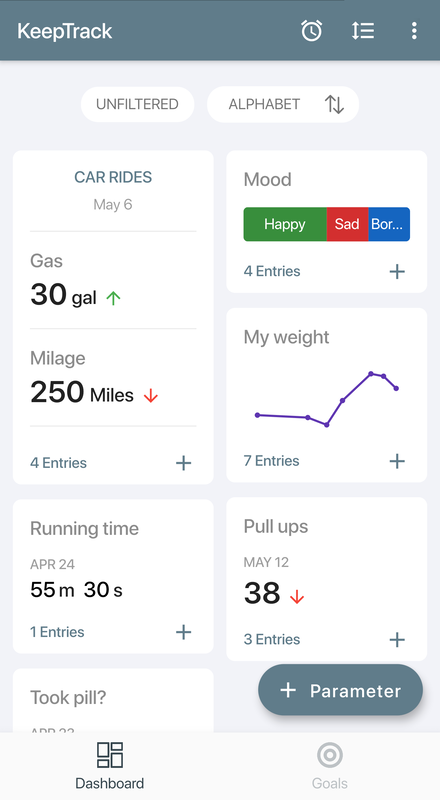
KeepTrack is a utility for collecting and viewing the statistics in your life from the comfort of your mobile phone. KeepTrack is generic and does not pre define the data you are collecting so whether it is your weight, training records, pills consumption, number of coffee cups or cigarettes you had today or any other data you can come up with which requires tracking - KeepTrack can collect the data and show you the statistics. KeepTrack is easy to use and understand and got many praise from users on its intuitive interface.

Tracker Types

Each data being collected (weight, pills consumption, etc.) is called a "tracker" in the KeepTrack terminology and can be defined as one of several types:
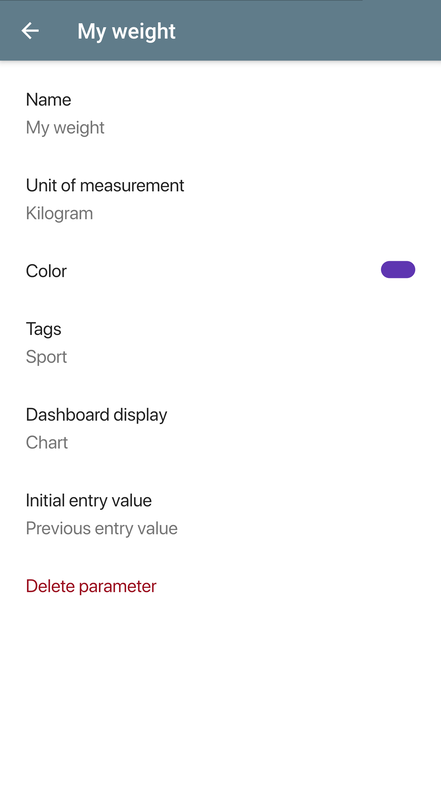
  • Numeric - Used for tracking weight, push ups, running distance etc. This type can show data as graphs and has many additional statistics.
  • Yes/No - Used to track data that can have two values like yes/no questions, for example: Did I water the plants today? This type can show data as a pie chart.
  • Text - Used to enter any free text you like, for example a daily comment.
More tracker types will be available in the coming versions.

Reminders

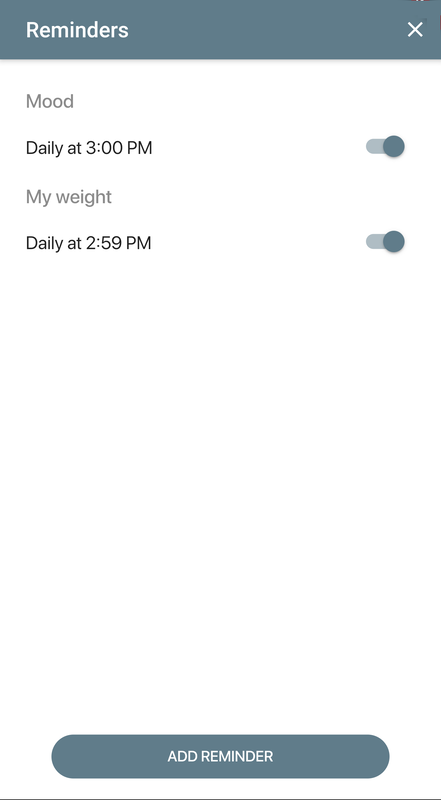
To help you collect your data KeepTrack gives you an option to set reminders that will prompt you to enter values. For example, if you measure your weight every morning you can set a reminder for that in the application and every morning you will be prompted for your weight. Values can also be entered manually in any required time.

Viewing Your Data

There are several ways to see your collected data in KeepTrack.
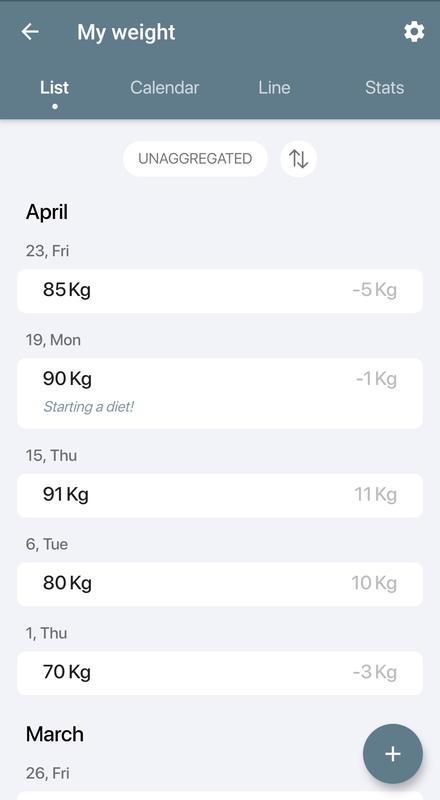
  • List View - Shows all the collected values with their entry time. This view allows editing of the data and supports several sorting options.
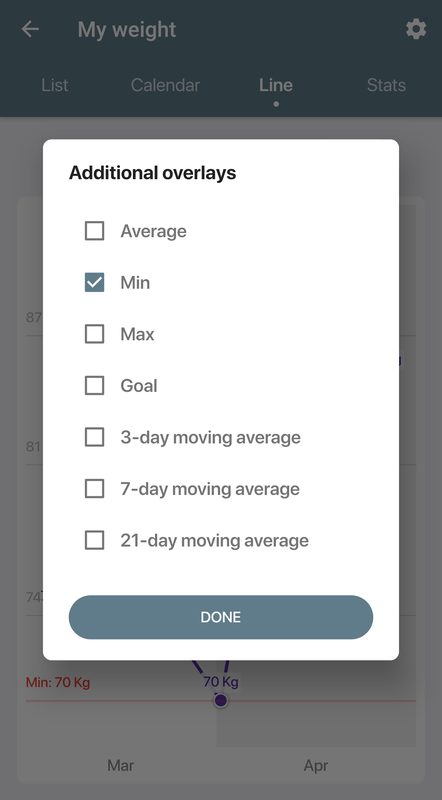
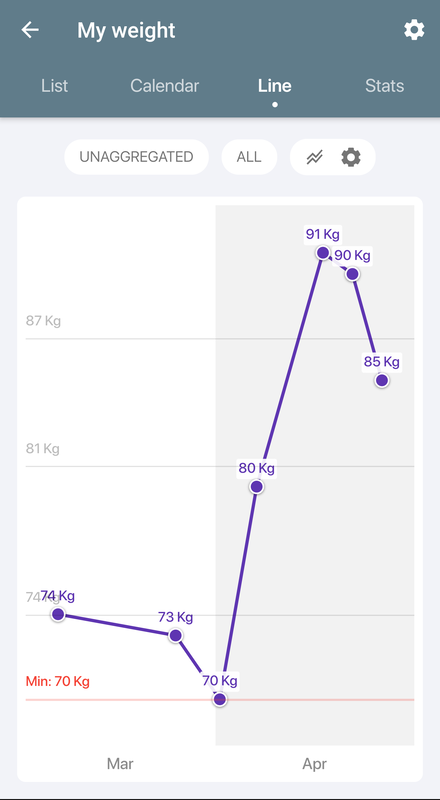
  • Graph View - Shows your numeric data as a graph. You can zoom in and out of the graph and swipe to scroll. Many viewing options are available including an option to see an average line, moving average, set the view range and others. You can also use this view to compare graphs of different trackers.
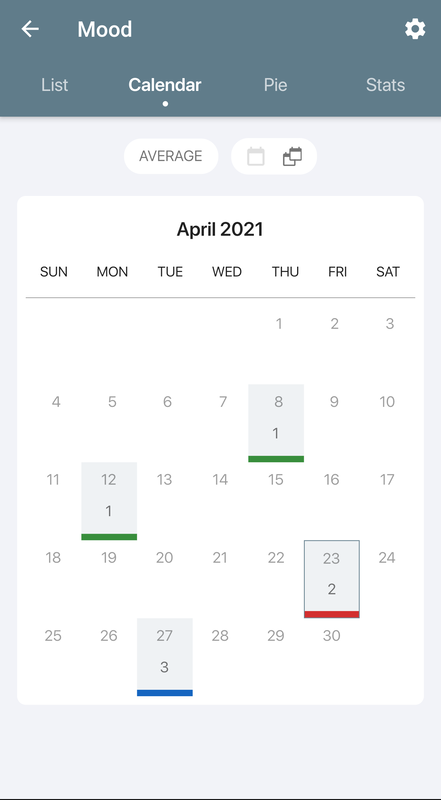
  • Calendar View - Shows a monthly calendar where you can see on which dates the data was entered. Every day in the calendar is painted with a color that shows the average of the values entered on that day. This view allows editing as well.
  • Pie View - Shows collected values in a pie chart.
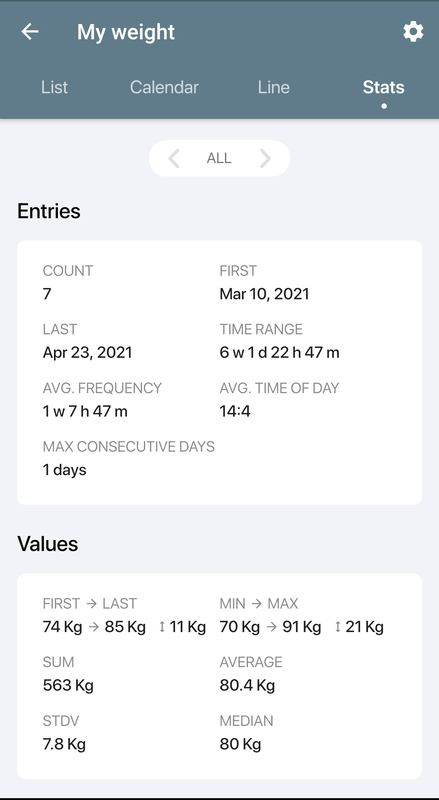
  • Statistics View - Shows various statistics on your data:  average, median, std. deviation and value range.
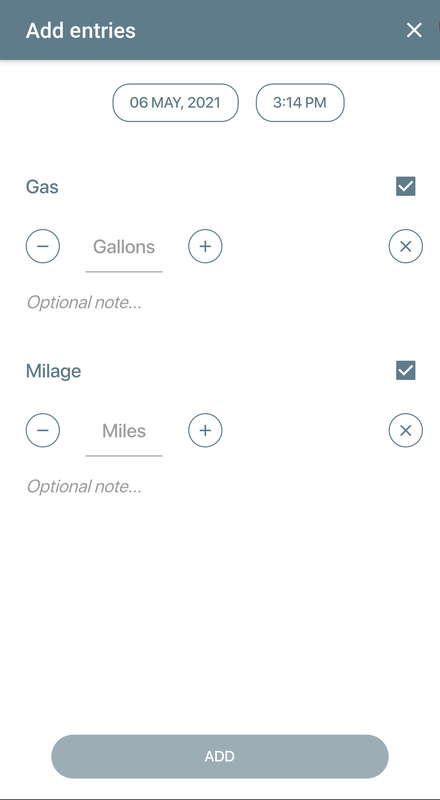
See screen shots of the different views below.

Backup

KeepTrack has the option to backup and restore your data. Data can be exported as either text files (can be used in spreadsheets like excel) or as XML files which can also be imported back and serve as a good backup option.

Supported Platforms & Price

KeepTrack is available only for the Android platform and requires at least version 1.6.
KeepTrack is free of charge, see the download information below.

Download

Picture
To download the application for free, use your favourite bar code scanning application on your mobile device to scan the bar code on the right.


Screenshots


Create a free website with Weebly