Zagalaga
  • KeepTrack
  • KeepTrack Pro
  • FAQ
  • Feedback

Introducing KeepTrack

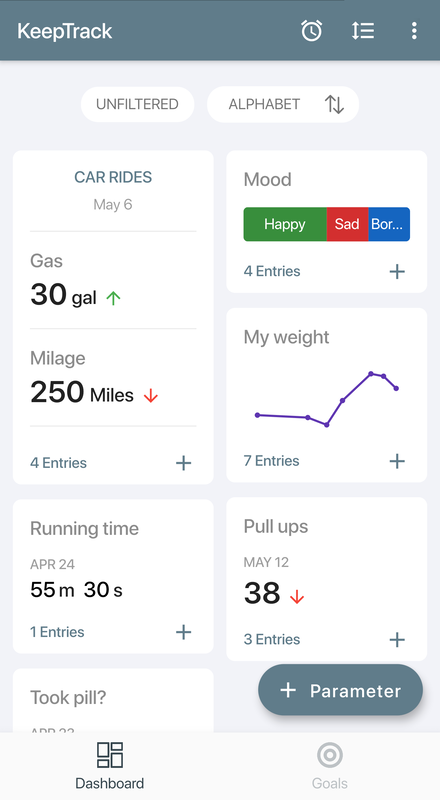
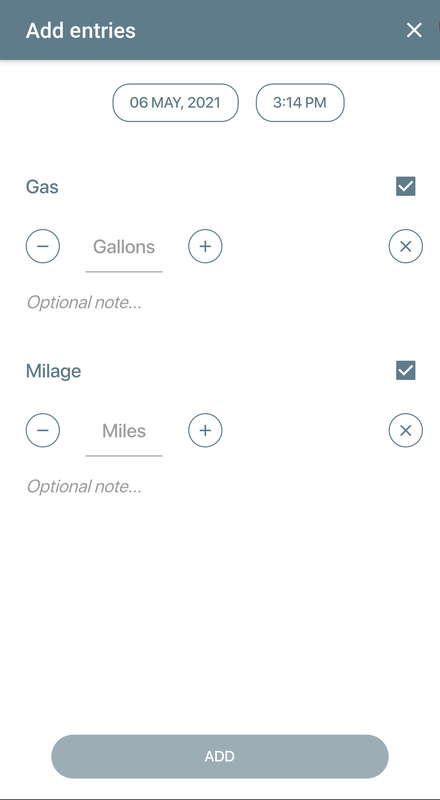
KeepTrack is a utility for tracking different areas of your life from the comfort of your mobile phone. KeepTrack is multi purpose so you can track any type of information whether it is your weight, training records, pills consumption, number of coffee cups or cigarettes you had today or any other data you can come up with which requires tracking. You decide what you wish to track, how often, and what to do with the information. The app's clean interface makes it easy to create new fields and enter data into existing ones. KeepTrack also provides helpful graphs and statistics if you wish to examine what you're tracking in greater detail.

Tracker Types

KeepTrack let's you track all sorts of information and this information can come in several general types, you can define each of your trackers to collect one of these value types:
  • Numeric - This is our most common type, it is used for tracking numbers such as weight, push ups, running distance etc.
  • Yes/No - Tracking yes/no questions, for example: Did I water the plants today?
  • Text - Track any free text you like, for example a daily comment.
  • Marker - Counts the occurrences of events, each time something happens you can mark that time in the tracker, for example you can count how many times you have smoked by marking each time you had a cigarette.
  • Pre Defined Values - Start by defining several values and then select one of them each time. For example, define 4 mood types (happy, sad, bored, anxious) and select one value each time.

Reminders

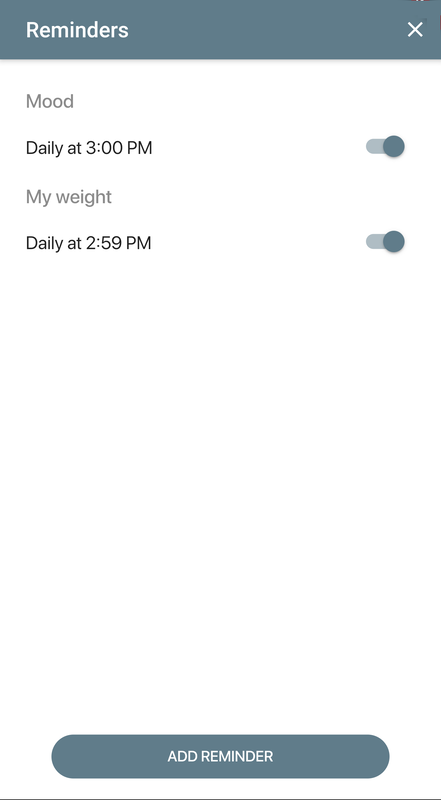
To help you collect your data KeepTrack gives you an option to set reminders that will prompt you to enter values at your selected schedule. For example, if you measure your weight every morning you can set a reminder for that in the application and every morning you will be prompted for your weight. Values can also be entered manually at the time of your choice.

Viewing Your Data

There are several ways to see your collected data in KeepTrack.
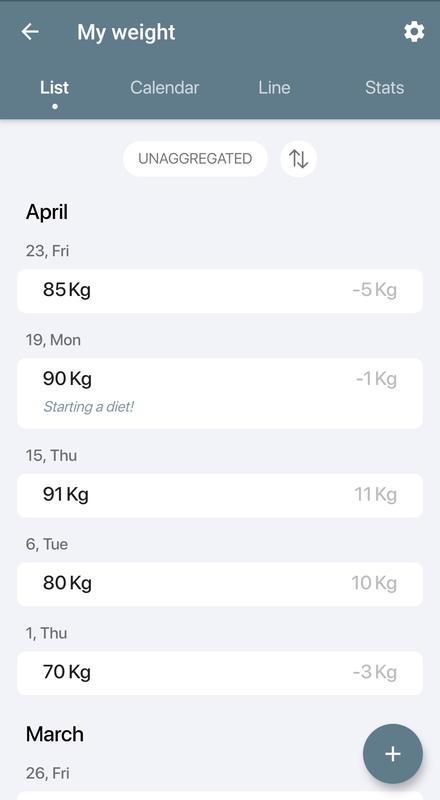
  • List View - Shows all the collected values with their entry time. This view allows editing of the data and supports several sorting options.
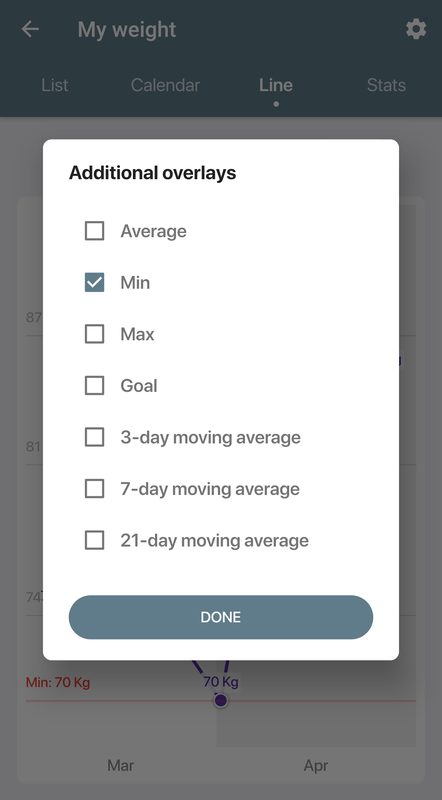
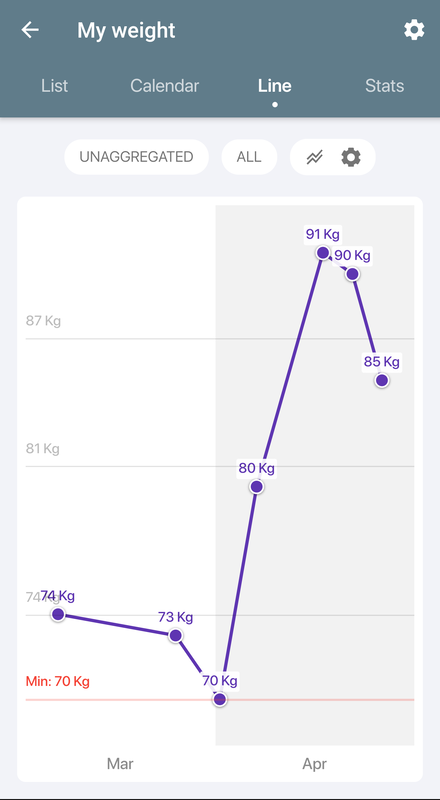
  • Graph View - Shows your numeric data as a graph. You can zoom in and out of the graph and swipe to scroll. Many viewing options are available including an option to see an average line, moving average, set the view range and others. You can also use this view to compare graphs of different trackers.
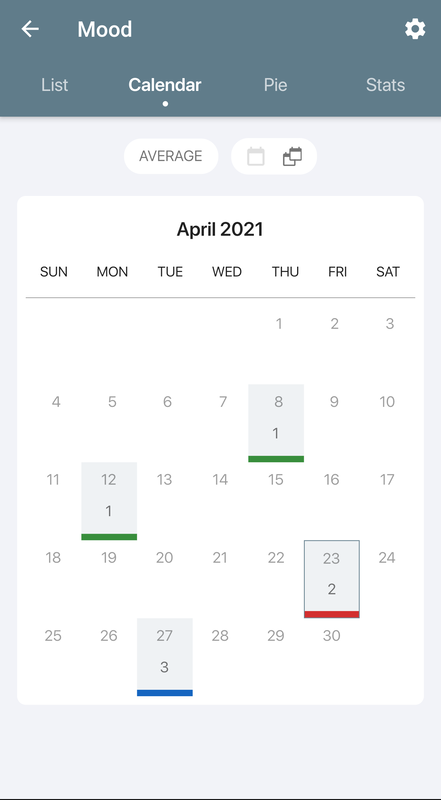
  • Calendar View - Shows a monthly calendar where you can see on which dates the data was entered. Every day in the calendar is painted with a color that shows the average of the values entered on that day. This view allows editing as well.
  • Pie View - Shows collected values in a pie chart. This view only shows for Yes/No and pre defined values tracker types.
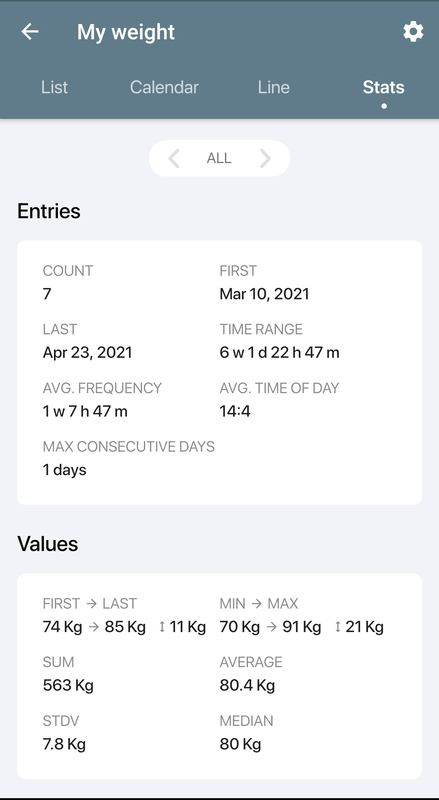
  • Statistics View - Shows various statistics on your data:  average, median, std. deviation and value range.
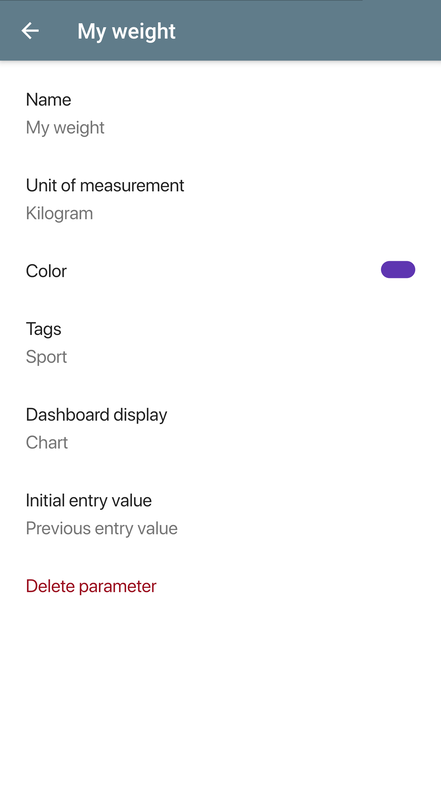
See screen shots of the different views below.

Backup

KeepTrack has the option to backup and restore your data. Data can be exported as either text files (can be used in spreadsheets like excel) or as XML files which can also be imported back and serve as a good backup option.

Supported Platforms & Price

KeepTrack is available only for the Android platform and requires at least version 1.6.
KeepTrack is free of charge, see the download information below.

Download

Picture
To download the application for free, use your favourite bar code scanning application on your mobile device to scan the bar code on the right.

Get it on Google Play
Picture


Screenshots


Proudly powered by Weebly